About me

Slidershow

Custom Search

Recent Posts

Thursday, March 29, 2012

Opening a link of one browser in another browser without opening another browser

If you have a web application which has many links and you want to test all the links in the same browser and also in another browser. What would be the default thing which you would do? You will copy the URL and open another browser and paste it. Then check whether that link will open properly or not.
This is fine until you have only few easily countable links to do. What if there are many hyperlinks and copy paste work of them is very tedious. You just drop out doing such things and give up because you don’t want to do it.

Here are the solutions for it.
    If you have to open a link in another browser
    1. Use Firefox. Firefox has an Add On “Browser View Plus”.
    2. Install the Add on.
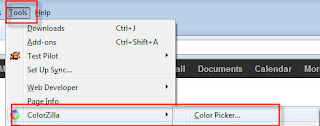
    3. Then go to Tools ">" AddOns And select Options in “Browser View Plus” section.
    4. Enter the browsers in which you want to open the links. That’s it.
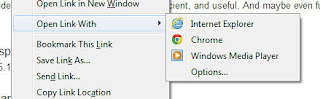
    5. Go to any link and right click on it. You will find “Open With” option which has the browsers list which you have mentioned in the Option dialogue box.
    6. See the below image which has the link “Open link with”.
    7. It shows the different browsers installed and are available in the drop down option for selection.
    8. Click option “Options” to add more browsers to it.
    If you have to open the web page in different browsers then go for the Add On “Open With” in Firefox.
    1. Install this and go to View of the web page. We can find options to open the web page in already installed browsers.
    2. See the below image for a better understanding.

Thursday, February 2, 2012

Design and Usability testing


When you go to meet a person for some purpose…. and if he has got a scary and unfriendly appearance. What would be your next step? Dropping the idea of meeting him and searching for another person, who can receive you properly and serve your purpose perfectly with good responses. Am I Right?
Now in above statement, think that you are a customer and you visited a web site. And website is the another person who is not so approachable. Here the approach of the web site is design and performance of the site. Visitor will switch to another web site if he is not pleased by its appearance, its performance, its usability. Visitors will explore the site more if they are satisfied. After all this, user tries to check if his purpose is solved or not.
Testing functionality, end to end flow, performance is normally done for all web applications. But, what about design and usability testing?
In this post I’m going to explain factors to be considered to test a design of an application.


Considerations to test design and usability of web application
  1. Home Page
    1. Home page is expected to have a logo and major contents of the application.
    2. It would be better if logo is continued as favicon.
    3. Landing page should not have more number of images of large size. Page takes more time to load and visitor never hesitates to switch to another website as they will be more impatient.
    4. After loading of the page, purpose of the web site should be mentioned very clearly in a line or so. This makes the visitor to decide whether he has entered into correct web site or not.
  2. Content
    1. Color & Font style
      1. Soothing color and background should be selected.
      2. Font should not be scary but it should be readable and understandable
      3. Consistency should be maintained for the font used for menus, buttons and other content.
      4. It should be easily accessible to users with disabilities like color blinded.
    2. Hyperlinks
      1. Color of visited and unvisited links should be easily differentiable.
      2. Avoid too many links.
      3. Color used for links should not be used for any other text part of the content to highlight.
      4. Also avoid link navigating to same page or looping the visited pages.
    3. Forms & Sections
      1. Main sections for which the visitor visits the site should be occupied in the body of the page. And rest low priority factors come in left, right, bottom sections of the page.
      2. Sections should not be overlapping or under covered with another section.
      3. Visitor should not keep checking for the fields to enter any data.
      4. Fields should be properly aligned.
  3. Images / Graphics
    1. Logo should be included for the error messages so that user gets an idea about error source.
    2. It would be good if the images on front page match the purpose of the site.
    3. Too many flash images make the user confused about the content of the application.
    4. Consistency in complete web application is expected.
    5. Too many flash images or advertisements turn them off.
  4. Page usage & Navigation
    1. Web page should be optimally utilized and should not have blank sections or irrelevant details.
    2. Too much of scrolling should be avoided.
    3. Structure of the complete web application should be clear and easily navigating.
    4. Sitemap should be available to know where the visitor is and how he can go to another section.
  5. Additional
    1. Check if your design is compatible with most of the browsers or not. Check this post  Browser Compatibility testing manually
    2. Help should be provided to provide details of the page and its purpose and usage.
    3. Search facility should be implemented in the application to avoid more number of navigations.
    4. If there is any information which user might feel that he needs to take a print out like an article. Then provide a print option in the page itself. It should print it as a page and not as web page. Moreover it should contain the logo of the web application.
    5. Error messages should properly guide user to correct them easily. Instead of saying “please correct below fields in red”. Say what is wrong and what values are not allowed in those fields. This will help them to quickly correct their mistakes.
    6. Acknowledgement and confirmation messages should be displayed wherever required.
And last but not least…tools which help in testing them better. In my next post I will explain about the tools which can be used for testing the design of a web application. So tester’s just feel happy and excited whenever you are given a job of testing the design. It just needs tools and bit of creativity also.


Tuesday, September 27, 2011

Scrum Methodology - Quick Info


It is one of the unique methodologies of agile methodology.

Scrum 

It is an iterative, incremental framework for project management. It is a loose set of guidelines that govern the development process of a product, from its design stages to its completion. It aims to cure some common failures of the typical development process like a. chaos due to changing requirements, unrealistic estimates of time, cost and quality of the product.

Meetings

1.     Daily Scrum meeting or daily stand up meeting: agenda:  what is done, what is planned for today, what are the problems in accomplishing the goal?
2.     Sprint planning meeting : Before each sprint cycle (7-30 days)starts, prepare sprint backlog, timelines,
3.     Sprint review meeting: done at the end of sprint cycle, review work completed and not completed, demo the work completed, do not demo incomplete work, 4 hour time will be allocated.
4.     Sprint retrospective meeting: done at the end of the sprint cycle. Questions are asked - what went well during the sprint and what could be improved in the next sprint. Make continuous process improvements

Sprint Burn Down Chart

1.      Depicts the total Sprint Backlog hours remaining per day.
2.      Shows the estimated amount of time to release.
3.      Ideally should burn down to zero to the end of the Sprint.

Scrum roles

1. Product Owner
2. Scrum Team
3. Scrum Master


 Click below for diagrammatic representation of scrum workflow and also for traditional diagram of scrum workflow